 DevOps Studio
Connect your first server
This guide takes you from a fresh install to a working session: add one server, verify that it is reachable, and run a command in the terminal. Takes about three minutes.
Before you start, have these ready: the host name or IP address, the SSH port, the username, and either a password or a private key.
1. Open the app
On first launch you get an empty workspace with four starting points — Resource monitor, Smart diagnosis, Deploy & push, and Automation ops.
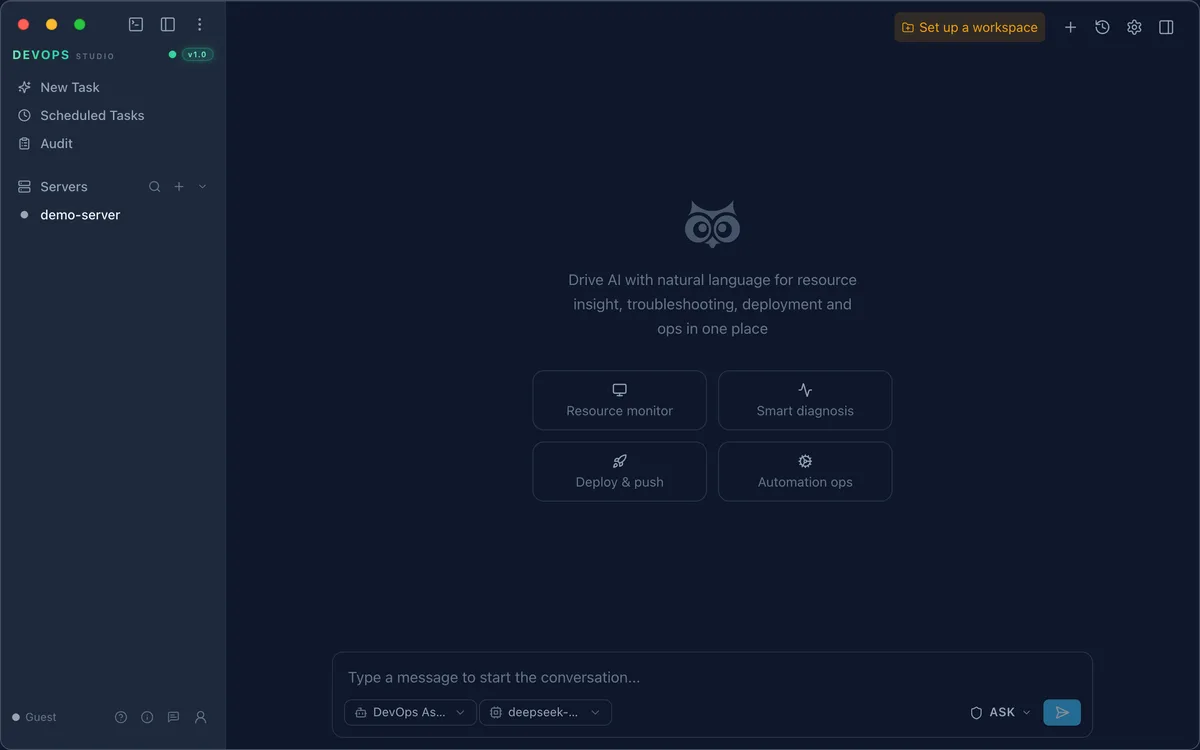
Click Set up a workspace in the top-right corner if the app asks for one. A session needs a working folder before it can read or write files.
2. Add a server
- In the sidebar, find the Servers section and click + to its right
- Fill in the connection details:
| Field | Notes | Example |
|---|---|---|
| Connection Name | A label you will recognize | prod-server |
| Description | Optional purpose note | Web frontend |
| Host Address | IP address or domain name | 192.168.1.10 |
| Port | 22 for standard SSH | 22 |
| Username | The login account | root |
| Password | Only shown for Password login | — |
| Auth Method | Password login or Private key login | Password login |
| Group | Optional grouping for the sidebar | No group |
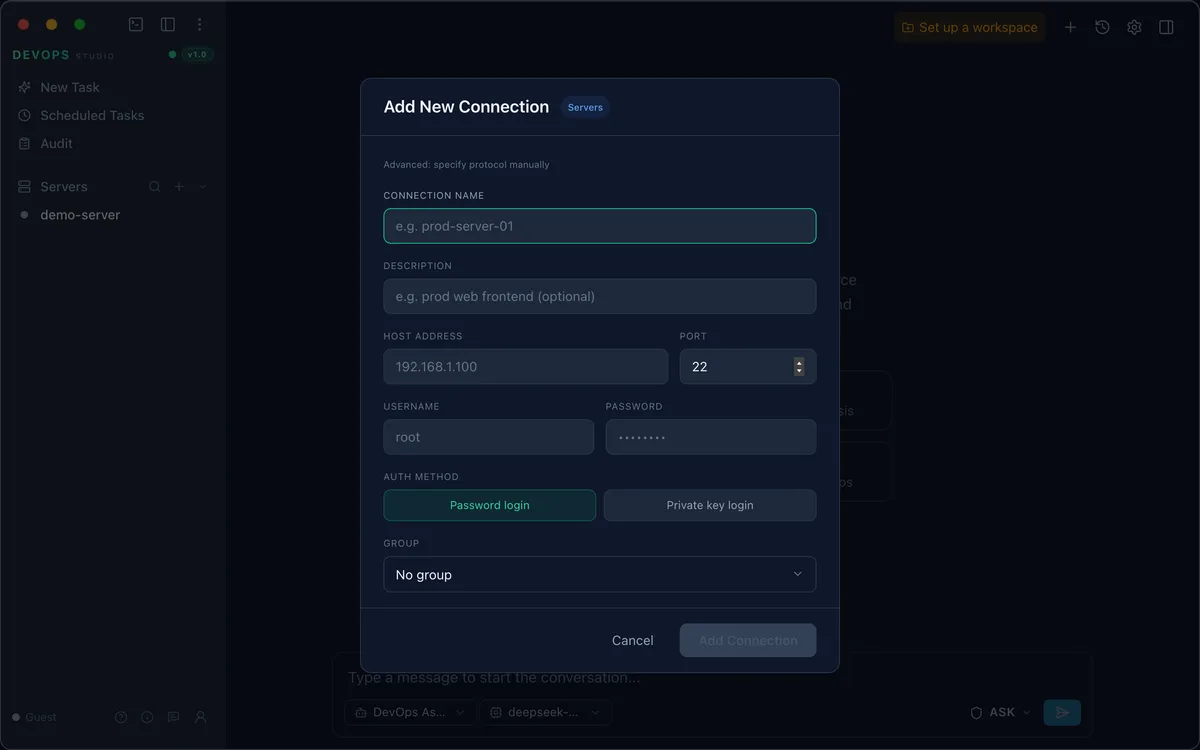
- Click Add connection
The server appears in the sidebar. Clicking it opens a detail card on the right and connects in the background.
3. Verify the connection
The status pill next to the server name turns Online, and the detail card shows the round-trip latency and when the connection was last used.
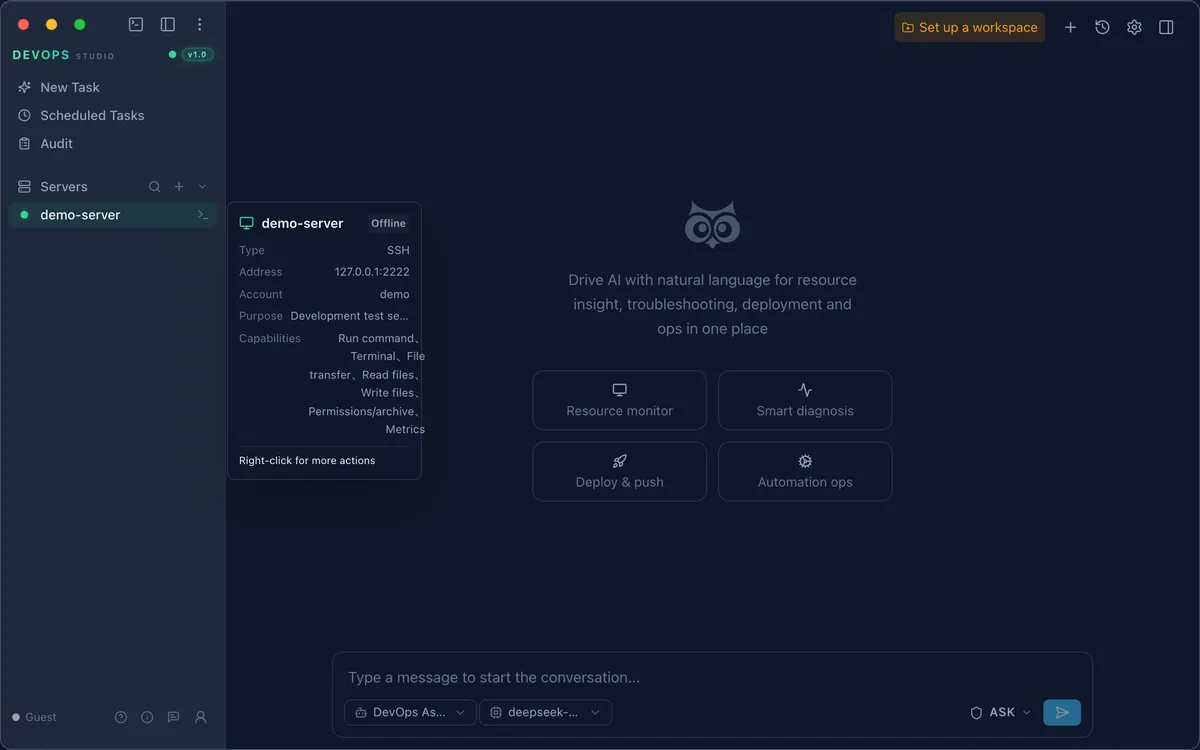
If it stays offline, check the address and port from another machine first:
ssh -p 22 root@192.168.1.10
If that fails too, the problem is the network or the credentials — not the app.
4. Run your first command
Right-click the server in the sidebar and choose Open terminal.
uname -a
df -h
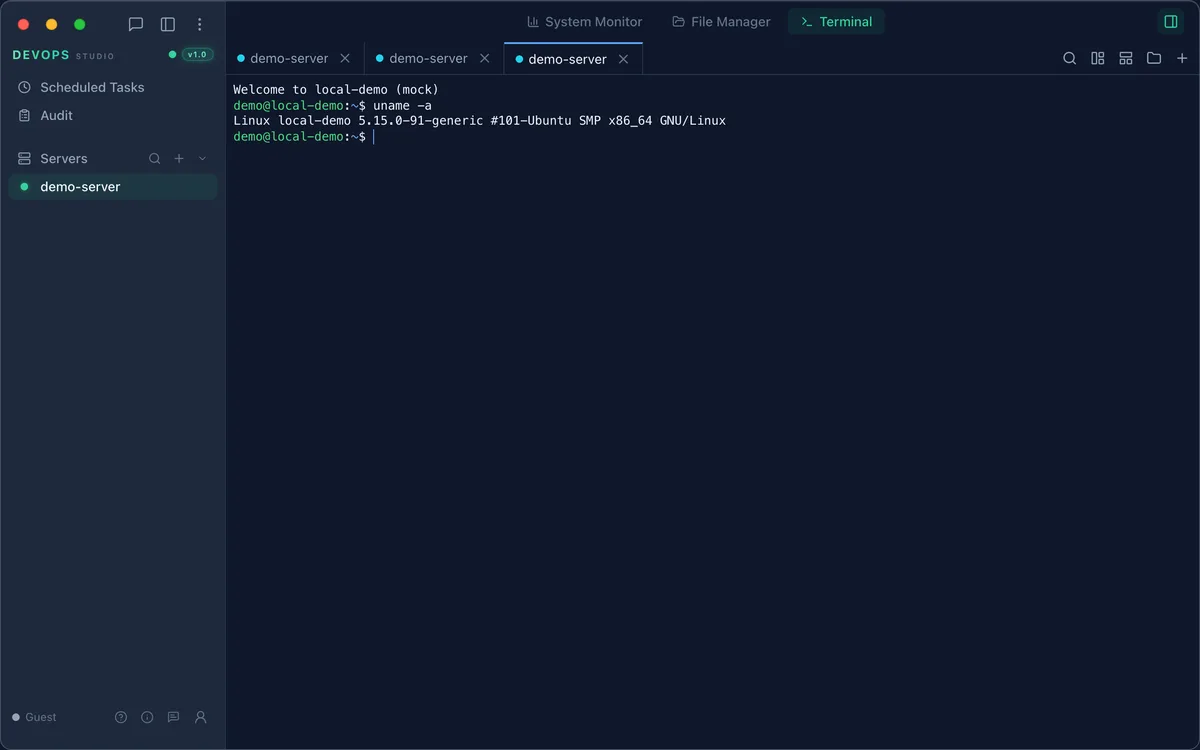
uname -aconfirms the operating system and kernel versiondf -hshows disk usage per mount point
Talk to it instead
You do not have to type commands. Describe what you want in the message box at the bottom, for example "check which directories are using the most disk space". The assistant picks the right tool, runs it on the selected server, and summarizes the result.
Troubleshooting
Connection timed out — Confirm the SSH port is open on the server's firewall and that the host is reachable from your network.
Authentication failed — Private keys must be in OpenSSH format. If the key has a passphrase, enter it as well.
No terminal appears — Check that the server shows as Online. If it does not, re-open its detail card and reconnect.