 DevOps Studio
Settings
Click the config icon at the top right of the session area. It opens a panel with six tabs, each one scoped to a different layer of the assistant.
| Tab | What it controls |
|---|---|
| LLM | Model providers, and every model available to agents |
| Agent | Which assistant answers, and which model it runs on |
| Tools | Every capability the assistant can call, with per-group toggles |
| MCP | External MCP servers connected to the engine |
| Skills | Installed skills, and whether each is active |
| System | Interface language and log level |
LLM — models
Models are grouped by provider. The header shows the totals (for example 15 models · 4 providers) across MiniMax, Z.ai (GLM), OpenAI, DeepSeek, and any provider you add.
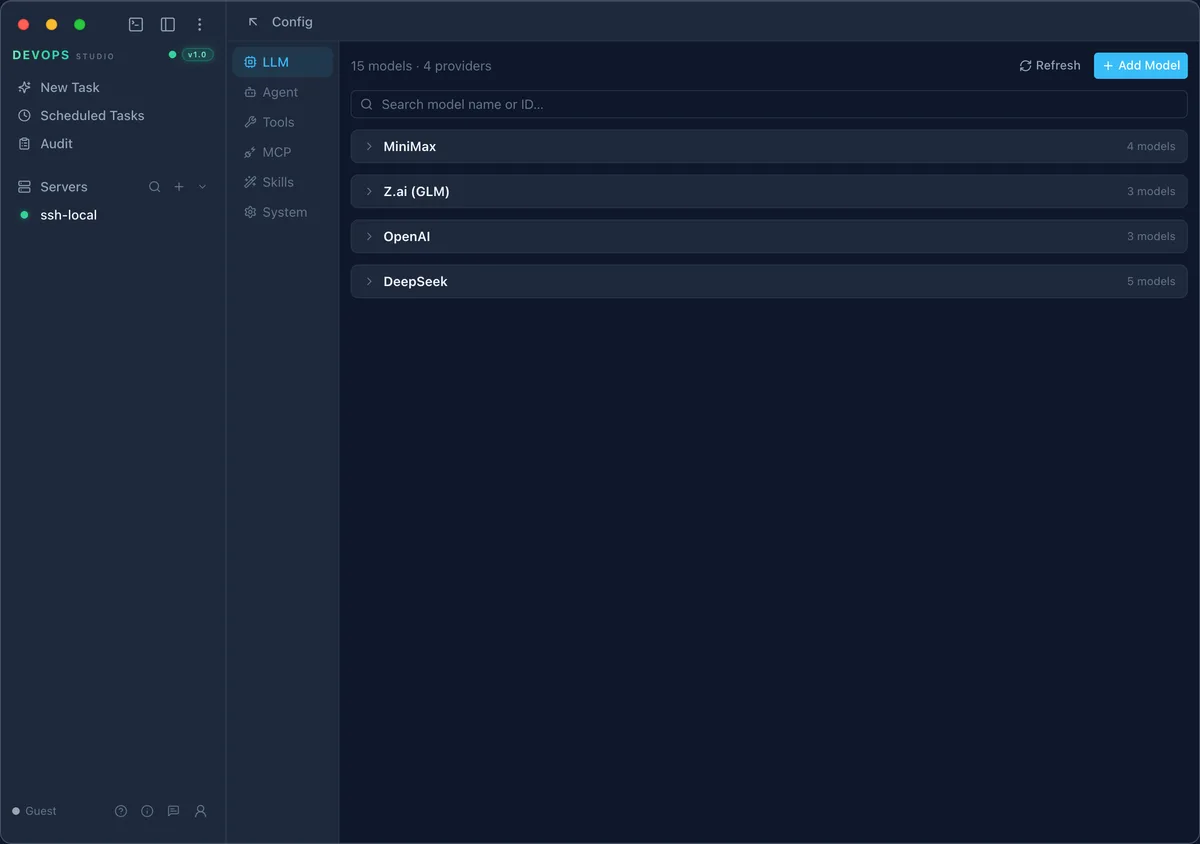
- Add Model registers a provider and its credentials
- Refresh re-reads the provider list
- Expanding a provider shows its individual models; the one marked default is used by new agents
Nothing here is sent anywhere until an agent actually runs — this tab only declares what is available.
Agent — which assistant answers
Each agent binds a name, a description, and a model. The built-in DevOps Assistant is marked Built-in · Product default and is read-only: it is what you get out of the box, tuned for SSH/SFTP/FTP operations, remote command execution, and scheduled jobs.
New Agent creates a custom one. A custom agent differs from the built-in in three ways:
- You write its instructions, so it can be scoped to a team or a workflow
- You choose its model independently of the default
- It is editable, so you can iterate on prompts without touching the built-in
Switch agents when the same server needs a different posture — a cautious read-only agent for production, a more autonomous one for staging.
Tools — what the assistant can do
The Tools tab is the full inventory of callable capabilities: the devops tools, browser tools, file and search operations, plus everything exposed by connected MCP servers.
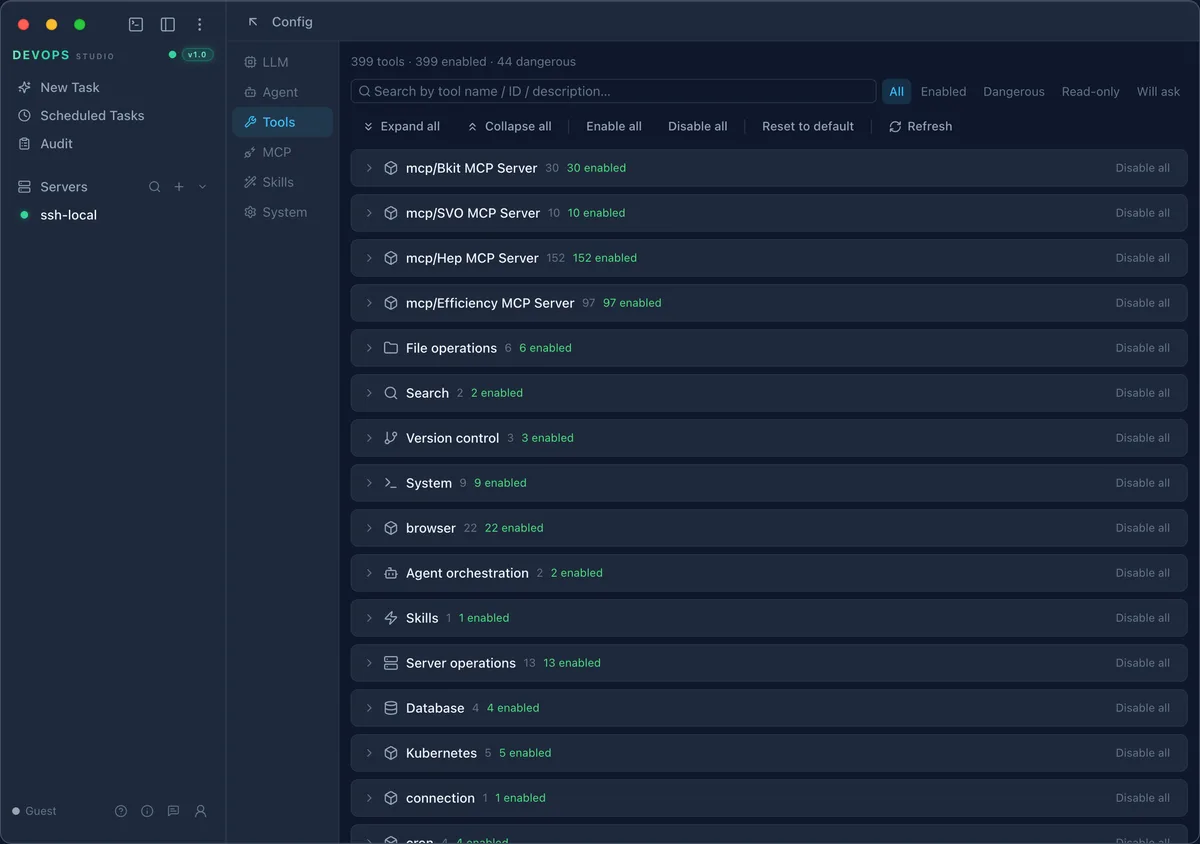
The header summarises the inventory — total tools, how many are enabled, and how many are
classified as dangerous. Groups are listed by source (mcp/Hep MCP Server, File operations,
browser, …) with per-group counts and a Disable all action.
Filters narrow the list to All, Enabled, Dangerous, Read-only, or Will ask — the last two are the ones to check when you are tightening what an agent may do unattended.
Bulk actions cover the whole inventory: Enable all, Disable all, Reset to default. Turning a tool off here removes it from the assistant entirely; it does not just require approval, it becomes uncallable.
MCP — external servers
Model Context Protocol servers extend the tool inventory with capabilities from outside the app. The header shows how many are configured and how many are currently connected.
- Add Server registers one over Streamable HTTP
- Each row shows its transport, connection state, and what it contributes — tool counts, and for some servers resource and prompt counts as well
- A server that is registered but not connected is listed with its state rather than hidden
Tool counts from these servers appear in the Tools tab under an mcp/<server name>
group, so you can disable a noisy server's tools without disconnecting it.
Skills
Skills are higher-level procedures layered on top of tools — a packaged way of doing a task that the assistant loads when the request matches. The list shows each installed skill with its version, description, and tags, plus a toggle to enable or disable it.
Skills are registered to the engine, so toggling one takes effect for new sessions without a restart.
System
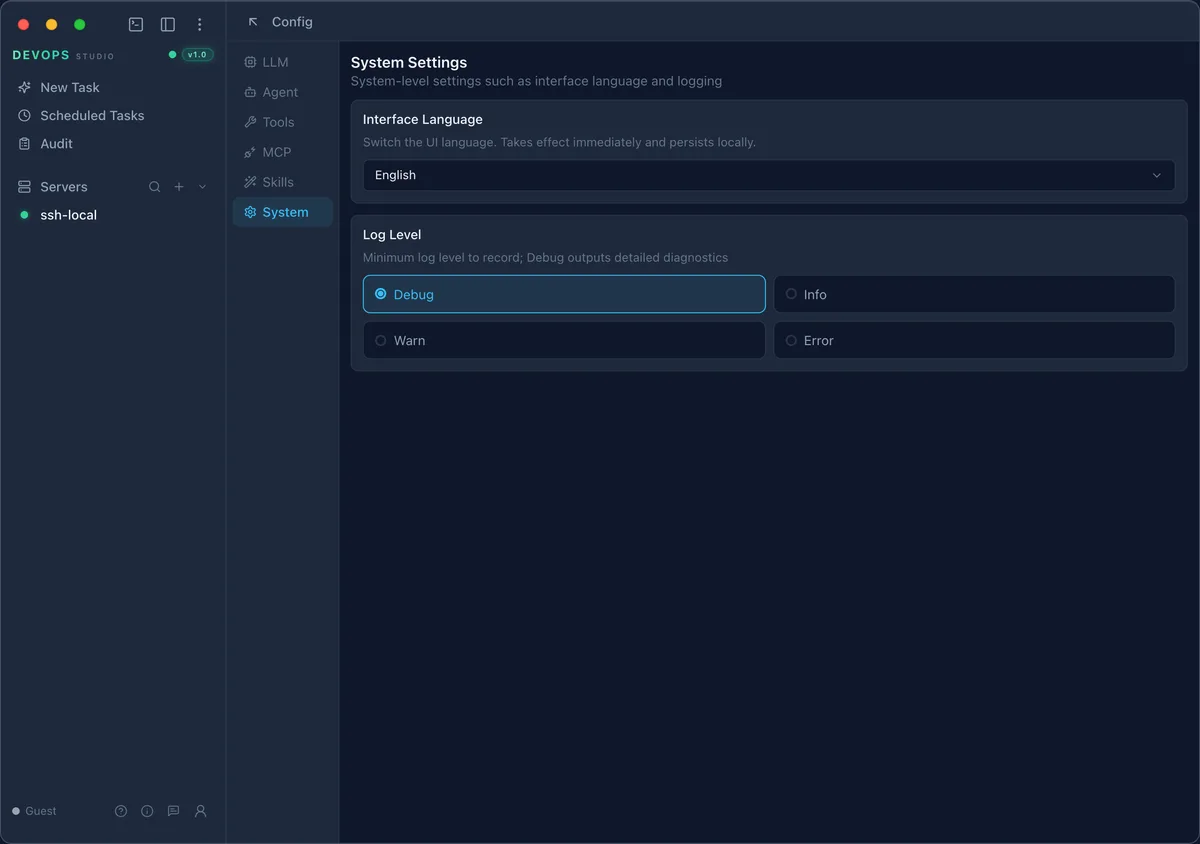
Two settings live here:
Interface Language switches the UI language and persists locally. It takes effect immediately — no restart, no re-login.
Log Level sets the minimum severity recorded: Debug, Info, Warn, or Error. Debug writes detailed diagnostics, which is what you want when reporting a defect and what you want to switch away from once you are done — it is verbose.
Where these settings live
All six tabs are stored locally. Nothing in this panel is uploaded; see Data and privacy. Model credentials in particular are kept in the encrypted local store rather than in a readable config file.