 DevOps Studio
Terminal and file transfer
The terminal is a full interactive SSH session, not a command runner. Prompts, colours,
TAB completion, and Ctrl+C all behave the way they do in your local shell.
Open a terminal
Right-click a server in the sidebar and choose Open terminal, or click the terminal icon next to the server name.
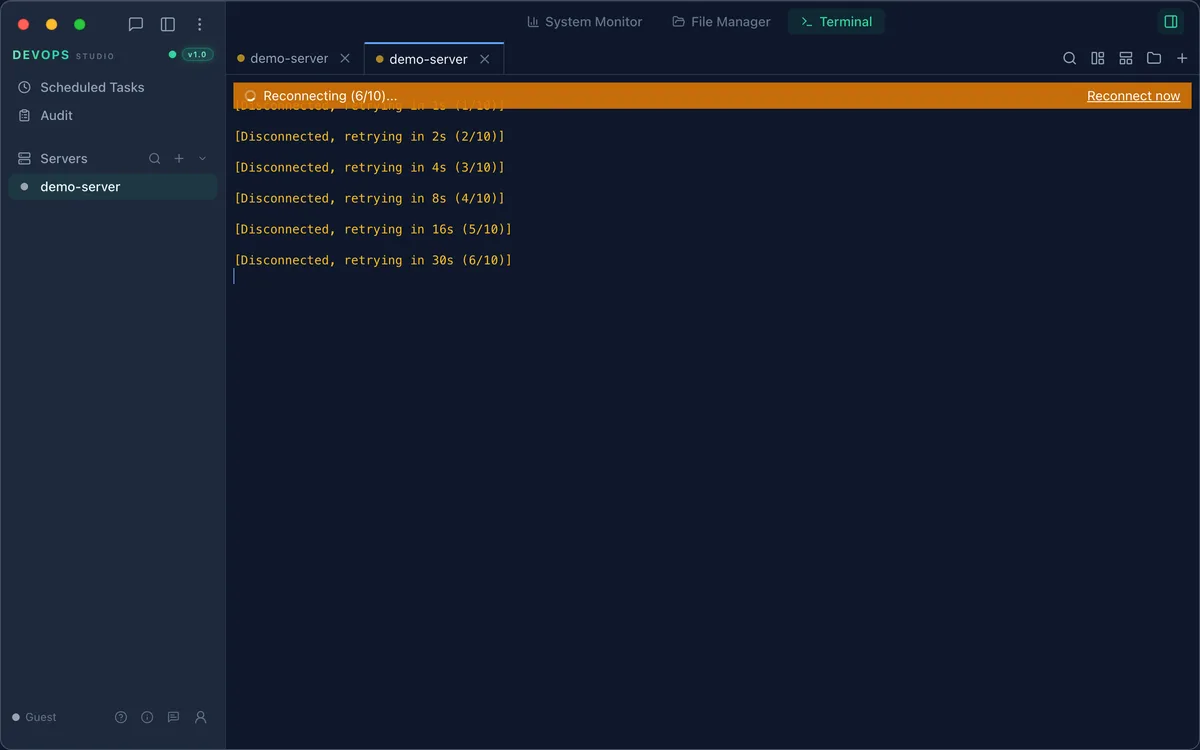
A tab appears in the panel area with the server name. The connection uses the same credentials as the sidebar entry, so there is no second login.
Work with several servers
Each server gets its own tab. Tabs keep their scrollback when you switch between them, so you can compare two machines side by side without losing output.
The panel header has three views for the selected server:
- System monitor — CPU, memory, disk, and load
- File manager — browse and edit remote files
- Terminal — the interactive shell
Move files
The file manager shows the remote filesystem in a tree with an editor pane on the right.
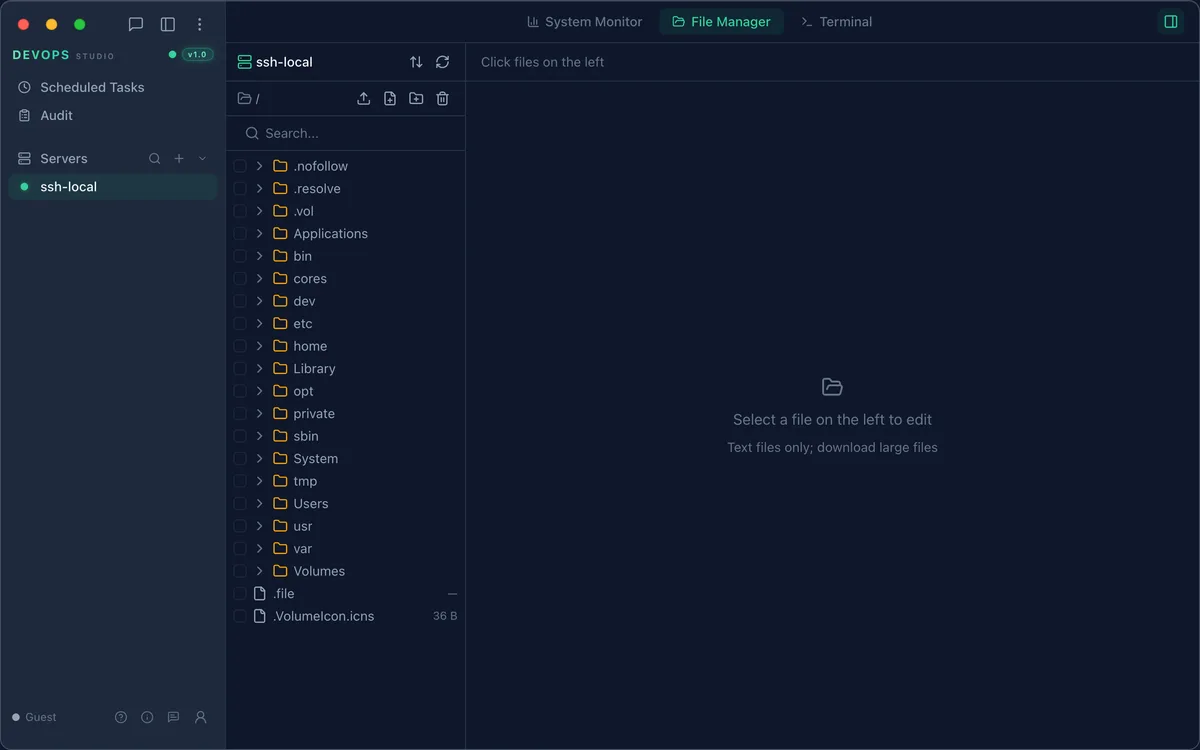
- Open File manager in the panel header
- Navigate to the directory you need
- Click a text file to open it in the editor; select Save to write it back
- Use Upload to
to send a local file into the current directory - Use New file or New folder to create an entry in place
Files are transferred over the same SSH connection, so there is no separate SFTP service
to configure and no additional port to open. Note that the file manager currently has no
download button — pull files with scp or sftp if you need a local copy.
Practical notes
Long-running commands — use tmux or nohup on the server if a command must survive
a disconnect. Closing the tab ends the session.
Large files — the editor loads text files only; use download/upload for binaries and anything over a few megabytes.
Copy and paste — the terminal follows the system clipboard. On macOS, Cmd+C and
Cmd+V work as expected inside the panel.